
To optimize your screen brightness for better rest, you’ll want to lower brightness levels considerably in the evening and enable blue light filters that reduce harmful wavelengths by up to 20%. Set your devices to automatically dim after sunset using Night Light settings, and aim for warmer color temperatures between 2,700K to 3,500K. These adjustments help maintain natural melatonin production and prevent the two-hour sleep delays that bright screens can cause, while additional strategies can further enhance your sleep quality.
Understanding the Impact of Screen Brightness on Sleep Quality
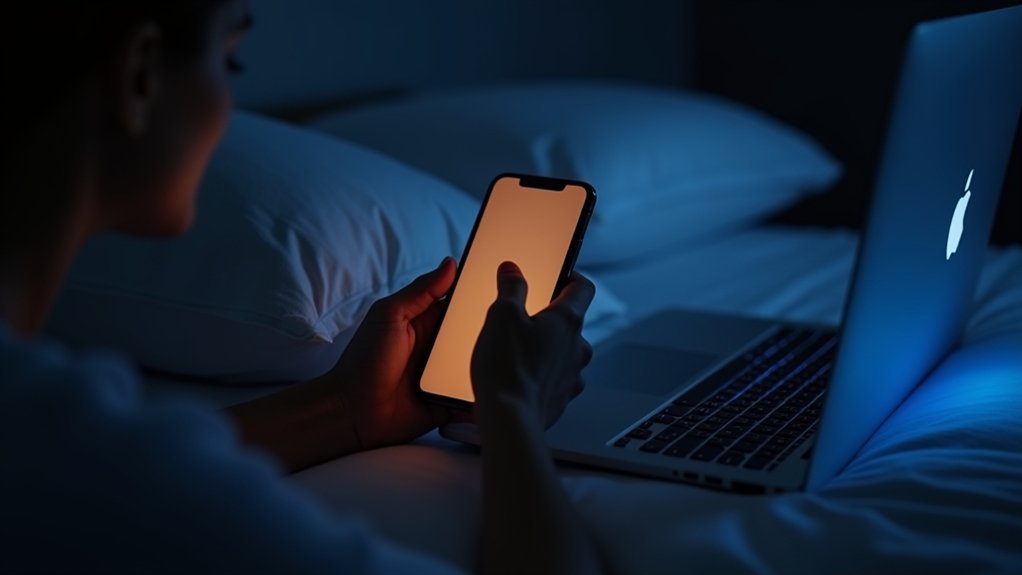
While you might think screen brightness only affects your eyes, it actually plays a crucial role in determining how well you’ll sleep tonight. High screen brightness disrupts your body’s natural circadian rhythms, making it harder to fall asleep and reducing overall sleep quality.
The blue light emitted from bright screens inhibits melatonin production, keeping you alert when you should be winding down. Studies show bright screen exposure before bedtime can delay sleep onset by up to two hours. This creates a cycle of poor rest and increased eye fatigue.
When you adjust screen brightness lower in the evening, you’re helping your body maintain its natural sleep-wake cycle and supporting better sleep hygiene for more restorative rest.
Manual Brightness Adjustment Techniques Across Devices
How can you take control of your screen brightness when automatic settings don’t meet your needs? You’ll want to adjust your computer screen manually to match ambient light conditions perfectly.
| Device Type | Access Method |
|---|---|
| Windows PC | Network icon → Settings → System → Display |
| Mac Computer | System Preferences → Displays → Brightness slider |
| Smartphones | Swipe down → Control center/Quick settings |
| External Monitor | Physical buttons on monitor frame |
For Windows devices, select the Network icon on your taskbar and navigate to the brightness slider. Mac users should open System Preferences and select Displays. Smartphone users can swipe down to access quick controls. If you’re using an external monitor without software control, use the physical adjustment buttons directly on the device for ideal manual brightness control.
Blue Light Filters and Color Temperature Settings
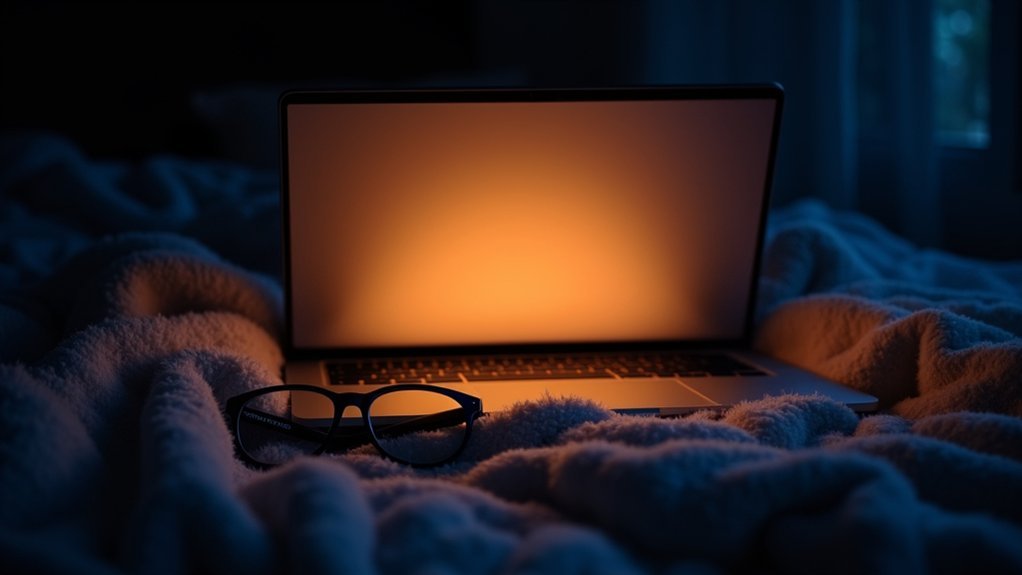
You’ll want to activate blue light filters on your devices to reduce exposure to harmful 400-480 nm wavelengths that disrupt sleep patterns.
Adjusting your screen’s color temperature to warmer settings around 2,700K to 3,500K during evening hours can cut blue light exposure by up to 20%.
Most modern devices include built-in filter options, or you can use programs like f.lux to automatically shift your display’s warmth based on the time of day.
Blue Light Reduction
Since blue light from screens can greatly disrupt your sleep by interfering with melatonin production, reducing your exposure during evening hours becomes essential for maintaining healthy sleep patterns.
You can activate blue light filters or night mode settings on your devices to decrease emissions by up to 70%. These features automatically adjust screen brightness and shift color temperatures toward warmer hues around 5,000K, helping align your circadian rhythms.
Programs like f.lux provide automatic adjustments based on time of day, shifting to evening-friendly tones without manual intervention.
For additional protection, you can limit screen time before bed and wear blue light blocking glasses. These strategies work together to reduce blue light exposure, minimize eye strain, and promote relaxation for improved sleep quality.
Color Temperature Adjustment
While most devices display light at cooler temperatures during the day, adjusting your screen’s color temperature to warmer tones around 5,000K can reduce blue light exposure by approximately 20% and greatly improve your sleep quality. You can easily adjust the brightness and screen color through built-in settings or apps like f.lux.
| Time Period | Color Temperature | Blue Light Level | Eye Comfort |
|---|---|---|---|
| Morning | Cool (6500K) | High | Moderate |
| Afternoon | Neutral (6000K) | Medium | Good |
| Evening | Warm (5000K) | Low | Excellent |
These automated adjustments help your circadian rhythms shift naturally from day to night. Warmer, reddish hues create less disruptive atmospheres for evening use, while cooler tones work better during daytime in well-lit environments.
Automatic Brightness Controls for Evening Hours
You can automate your device’s evening brightness adjustments by scheduling Night Light settings to activate at sunset or specific times.
Most operating systems let you configure brightness slider automation that responds to ambient light sensors or follows predetermined schedules.
These automated controls eliminate the need for manual adjustments while ensuring your screen dims appropriately as daylight fades.
Scheduling Night Light Settings
Although you can manually control your screen’s brightness throughout the day, Windows’ Night Light feature offers a smarter approach by automatically reducing blue light emission during evening hours. You’ll find the schedule options in Settings > System > Display > Night Light, where you can customize activation times to match your routine.
| Schedule Option | Description | Sleep Quality Benefit |
|---|---|---|
| Sunset to Sunrise | Automatic timing based on location | Natural circadian rhythm alignment |
| Custom Hours | User-defined start/end times | Personalized brightness adjustment |
| Manual Control | On-demand activation | Flexible blue light reduction |
| Strength Settings | Adjustable intensity levels | Optimized comfort for individual needs |
This intelligent schedule guarantees minimal blue light exposure during pre-sleep hours, promoting better rest without requiring constant manual adjustments.
Brightness Slider Automation
When evening approaches, your device’s automatic brightness controls can seamlessly take over the manual adjustments you’d otherwise need to make throughout changing light conditions.
These sensors detect surrounding light levels and adjust the display brightness accordingly, reducing glare that causes eye strain during nighttime use.
You’ll find this feature in Windows under Settings > System > Display by enabling “Change brightness automatically when lighting changes.”
For enhanced evening efficiency, consider using f.lux software, which automatically modifies both brightness and color temperature to minimize blue light exposure as darkness falls.
Remember to maintain proper distance from your screen while these automated adjustments work.
Regular display driver updates guarantee your automatic brightness controls function accurately, providing ideal comfort throughout your evening digital activities.
Creating an Eye-Friendly Environment for Better Rest

Since your environment plays a crucial role in how your eyes respond to screen brightness, creating the right lighting conditions becomes essential for both comfort and restful sleep.
Position your screens at eye level to minimize glare and reflections by adjusting room lighting and using non-glare displays. Maintain balanced ambient lighting that matches your screen’s brightness and contrast to avoid strain on your eyes.
The environment shouldn’t be too dim or overly bright. Use task lighting to enhance visibility while reducing reliance on adjusting the brightness constantly.
Incorporate blue light filters or night mode settings during evening hours to reduce disruptive exposure. Regularly reassess your workspace lighting conditions based on time of day to create a comfortable viewing environment.
Screen-Free Alternatives for Pre-Sleep Routines
While optimizing your screen environment helps during device use, shifting to screen-free activities before bedtime creates the most effective foundation for quality sleep. These pre-sleep routines eliminate blue light exposure entirely while promoting relaxation.
| Activity Type | Benefits | Implementation |
|---|---|---|
| Reading Physical Books | Reduces blue light, signals rest time | Keep book on nightstand |
| Mindfulness Meditation | Calms mind, prepares body for sleep | Practice 10-15 minutes nightly |
| Gentle Stretching/Yoga | Releases physical tension, improves sleep quality | Focus on neck, shoulders, legs |
| Calming Audio | Less disruptive than screens | Use nature sounds or soft music |
| Journaling/Aromatherapy | Clears thoughts, creates soothing atmosphere | Write worries down, use lavender scents |
These screen-free alternatives naturally enhance your body’s preparation for restorative sleep.
Frequently Asked Questions
How to Reduce Screen Brightness Even Further?
You can install third-party apps like Dimmer or use your device’s accessibility settings to reduce brightness below standard minimums. Enable dark mode and adjust contrast settings for additional eye strain relief.
What Is the 20-20-20 Rule?
The 20-20-20 rule means you should take a 20-second break every 20 minutes to look at something 20 feet away. This helps relax your eye muscles and reduces digital eye strain.
How to Optimize Screen Brightness?
You should adjust your screen brightness to match surrounding light levels, use automatic settings when available, and aim for around 50% brightness. Compare it to white paper for ideal comfort.
How to Increase Adaptive Brightness?
You can’t directly increase adaptive brightness intensity, but you can guarantee it’s enabled in Settings > System > Display, update your display drivers, and test different lighting environments to maximize its responsiveness and effectiveness.


